
Race the track. Beat the grid.
F1Live365 Racing is a browser game. Race a circuit, take the daily Beat the Grid challenge, or invite friends to a private multiplayer grid.

Choose your game
Where to play
Mobile and tablet browsers · Play now. Steer with your left thumb and use the on-screen accelerator and brake with your right. Rotate for a wider view of the track.
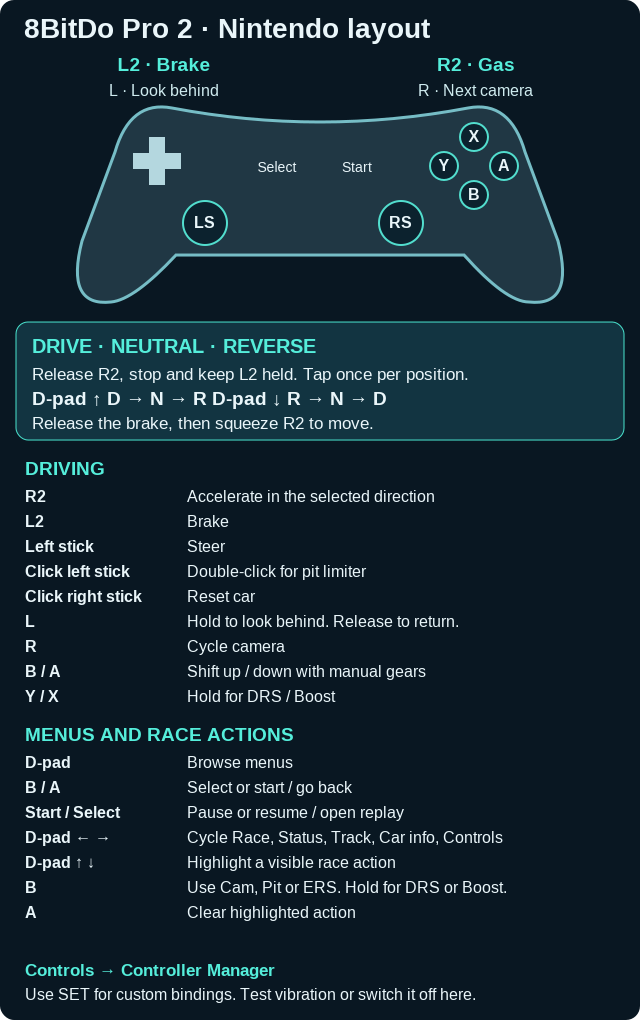
Desktop browser · Play now. Use the keyboard or connect a compatible USB gamepad. On a Nintendo-layout Pro Controller, press B to start and select menu items. Open Controls to customise the pad.
iOS and Android apps · In testing. Public downloads are coming soon.
Console / Simulation · Coming soon.
How a private race works
- 1
Invite your grid
Sign in, create a private race, choose the circuit and share the invitation. Each friend signs in to join.
- 2
Meet in the waiting room
Pick an available driver, see who has joined and use driver chat while you wait. Tap Ready to race when you’re set.
- 3
Race together
When everyone is ready, the host starts the race. Drive against each other and see the finishing order in your private race results.
Single-player modes
Quick Race
Choose a driver, circuit and distance, then race against computer-controlled opponents.
Time Trial
Take an empty circuit and use the sector times to see where you can improve your next lap.
Grand Prix Weekend
Set your qualifying time to earn a grid position, then race from that spot.
Inside the game
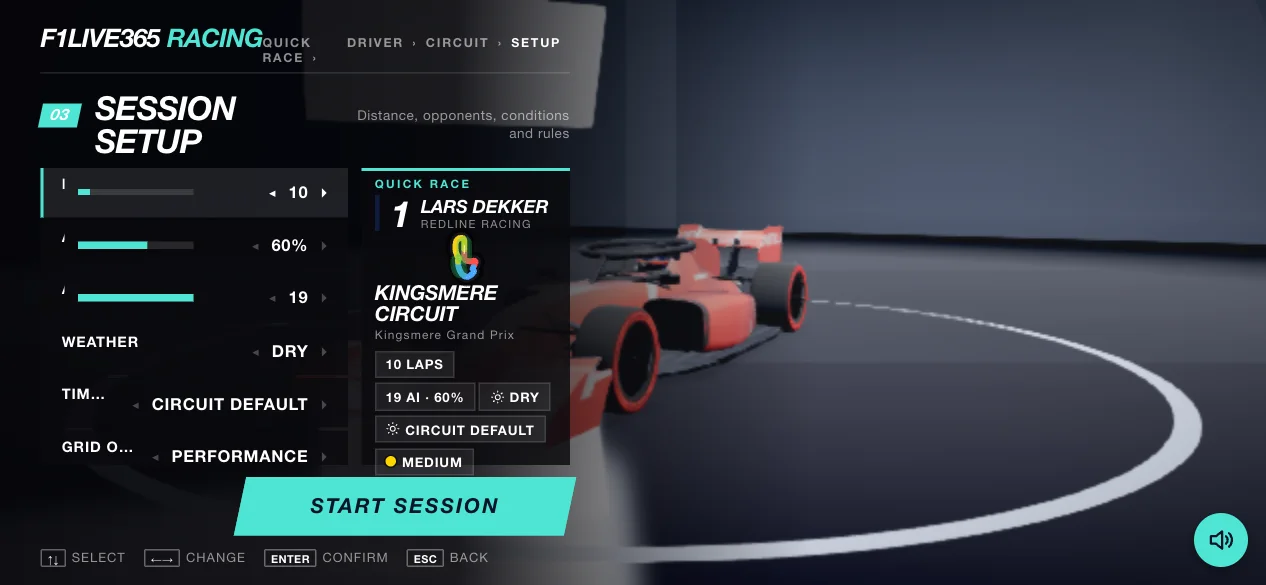
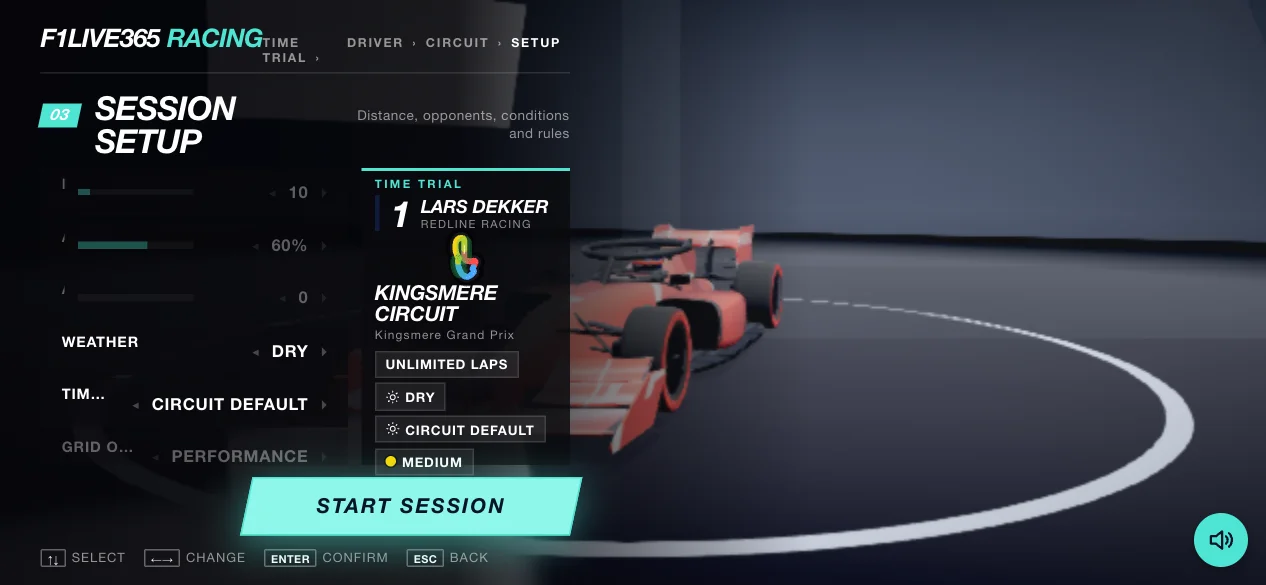
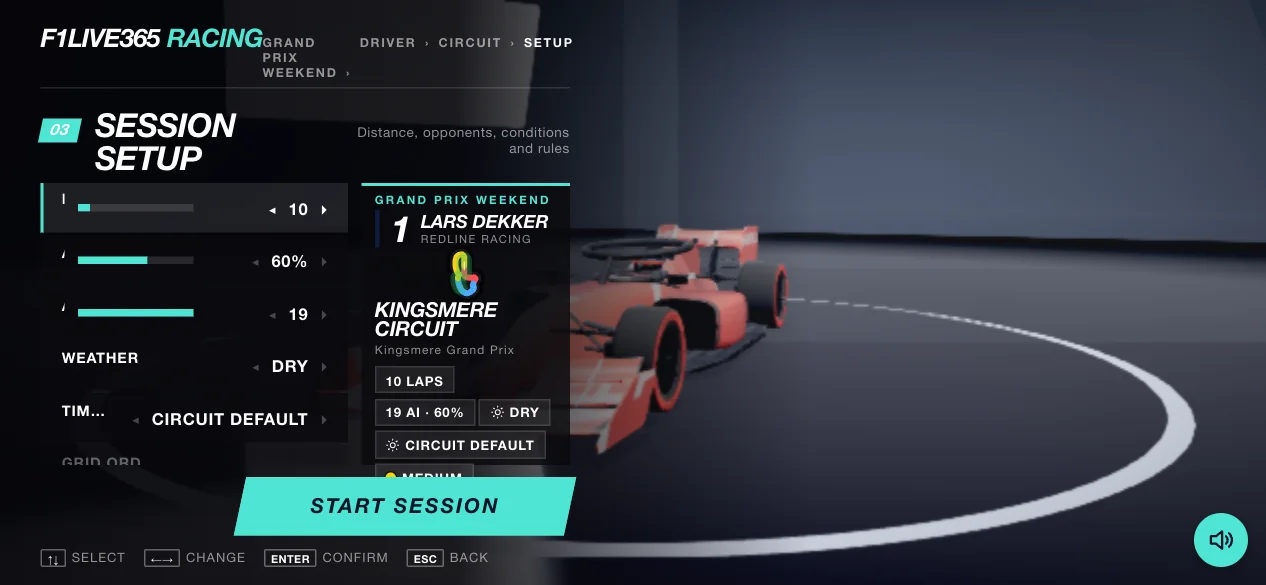
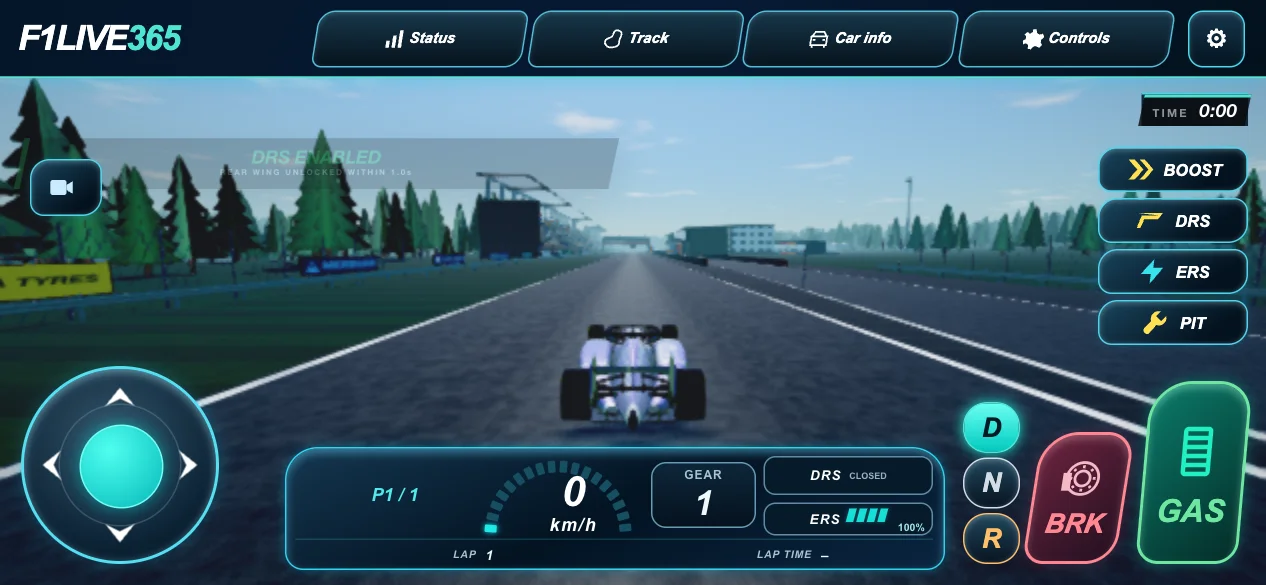
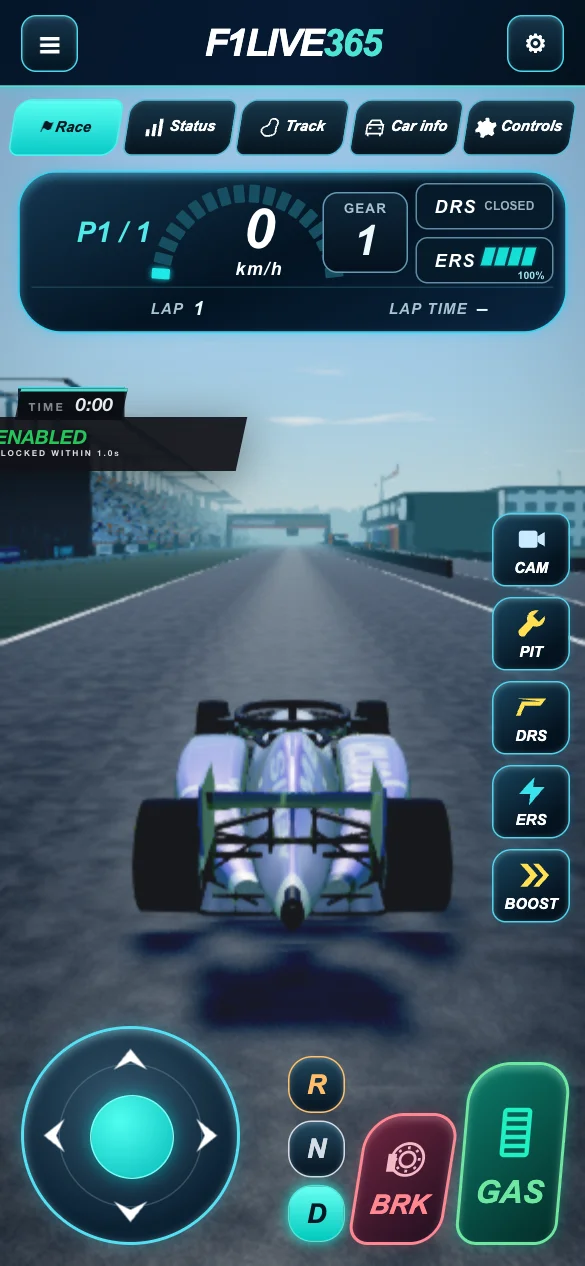
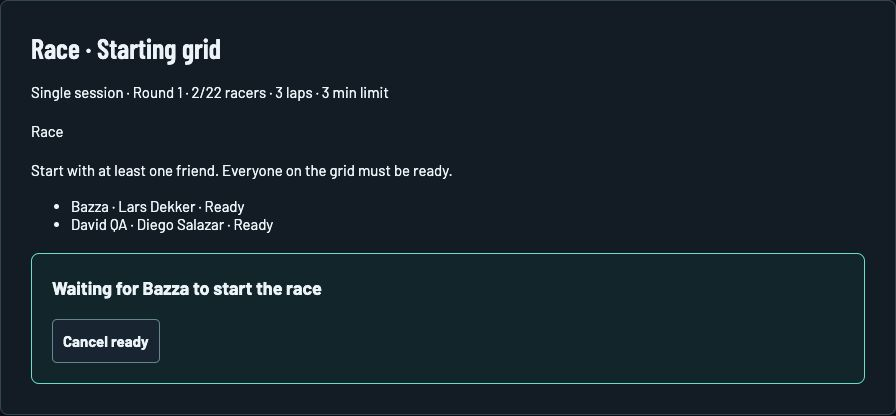
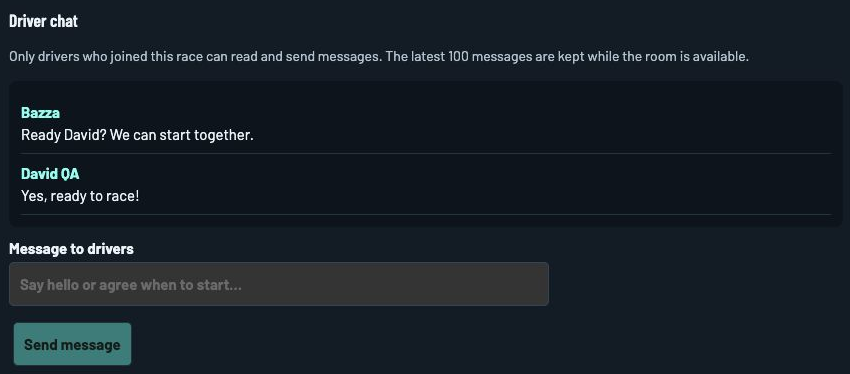
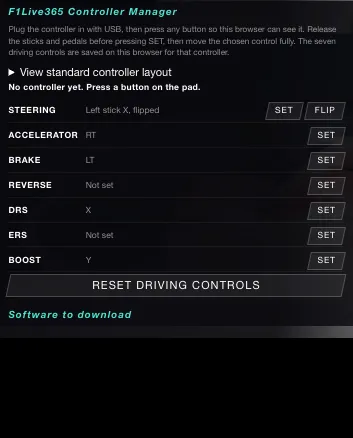
How to get started
Play now in the browser, then create a player account when you want friends on the same grid.
Play F1Live365 RacingTop 10 gamepads for racing
Our UK shortlist starts with familiar layouts and includes wired, wireless and adjustable options. The order reflects setup and features. Hands-on F1Live365 testing across all ten is still pending.
Xbox Wireless Controller
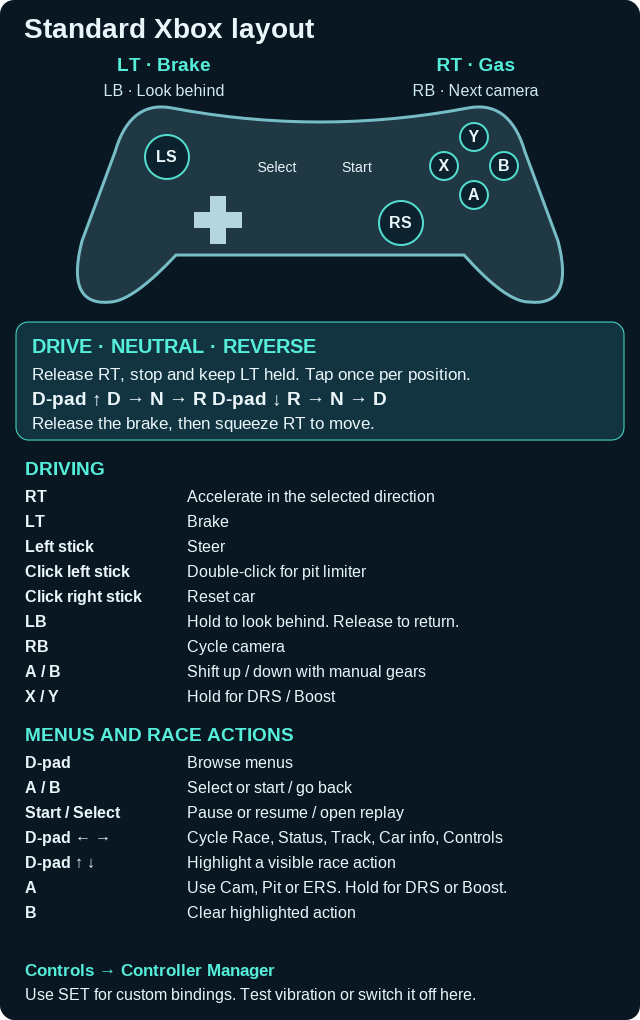
An easy reference for beginners. The letters printed on the buttons match our standard driving diagram.
Shop at Microsoft ↗DualSense Wireless Controller
For players familiar with PlayStation controls. R2 is the accelerator and L2 is the brake on the standard layout.
Shop at PlayStation ↗8BitDo Pro 2
Featured in our USB setup guide. Our tester found the button letters hard to read on the black model. In Nintendo layout, the bottom button (B) selects.
Shop at Scan ↗8BitDo Ultimate 2C Wireless
A PC option with Hall effect sticks and triggers. Plug in by USB or use the wireless receiver.
Shop at Scan ↗GameSir G7 SE
A wired choice for a Windows racing setup. The cable keeps the pad ready between sessions.
Shop at Currys ↗Logitech F310
A straightforward USB pad for PC players who prefer side-by-side thumbsticks.
Shop at Logitech G ↗Logitech F710
A similar side-by-side stick layout with a USB receiver for wireless play on PC.
Shop at Logitech G ↗GameSir Cyclone 2
For a desk setup where you want to switch between a cable and wireless play.
Shop at Currys Business ↗Xbox Elite Wireless Controller Series 2 – Core
For Xbox-layout players who want adjustable thumbstick tension to fine-tune steering feel.
Shop at Microsoft ↗DualSense Edge
A premium PlayStation-layout option for players who want adjustable trigger travel.
Shop at PlayStation ↗
Related on F1Live365
Questions
Do I need to install anything?
No. F1Live365 Racing runs in the browser.
Is this the live timing?
No. Live timing is a separate part of the website. Racing is a game.
How do the pedals, pit limiter and vibration work?
The on-screen pedals show your throttle and brake pressure. Double-click the left stick (L3) to toggle the pit limiter and check its warning on the dashboard. On a compatible pad, gravel, barrier contact and collisions give vibration feedback. Open Controls → Controller Manager to test vibration or turn it off.
Can I race a friend?
Yes. Open Multiplayer, create a player account, and send an invitation to a private grid.
Are there cash prizes?
No. Scores and leaderboards stay inside F1Live365.
Next
The race is in the games section whenever you want another lap.